
AI Document Summary
The AI Document Summary tool makes it easy to understand complex files by pulling out key terms, dates, obligations, and action items. It only uses clearly stated information from the text, so it doesn’t guess, interpret, or give tax/accounting/professional advice. If a document has unclear headings or missing details, those sections will stay empty to avoid errors.
Note: The AI Document Summary feature is currently available for native document storage only.
The AI Document Summary feature supports the following file types:
Documents
.PDF, .DOCX, .DOC, .RTF, .TXT
Web & Email
.EML, .HTML
Firm Settings
You must first Enable AI Tools in Firm Settings.
- Click
 Firm Settings.
 - Click the Advanced Settings
- Scroll to the bottom and click the Edit
- In the Files section, select Enable AI Tools. A Disclaimer will be shown. Click I understand, enable.
- At the bottom of the window click Update.
Access AI Document Summary
You can view the AI Document Summary via Files.
To view the AI Document Summary:
- Click
 Files.
 - Click a client folder to see the contents.
- Click the AI Summary icon on the desired document.
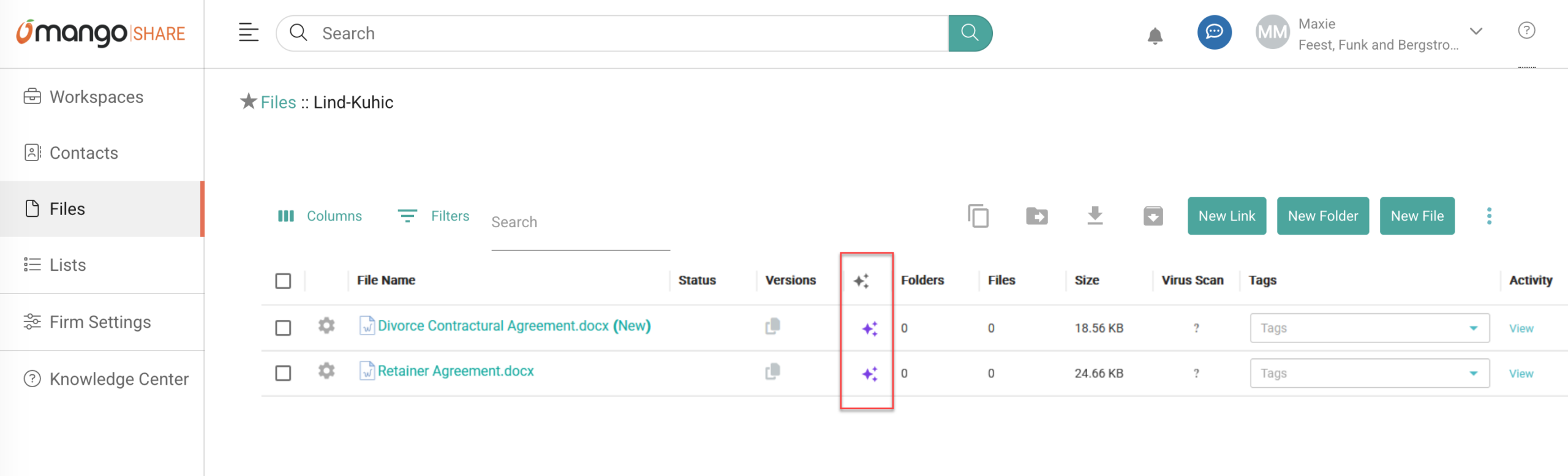
…or…
Click the document and then click AI Summary in the right-hand pane. - The AI Document Summary will be shown on the right-hand pane.

Note: You are advised to verify the accuracy of the content.
Note: If the file size exceeds 50 MB, an error 413 FILE_TOO_LARGE will be shown. If the document length exceeds 200,000 tokens, an error 400 DOCUMENT_TOO_LONG will be shown.
Learn More
The following knowledge base articles contain additional information relating to AI: