
Time History by Invoice Report
September 14, 2026
all plans
This article shows how to run the Time/Expense Records Report, and include an example of the report.
- Running the Time/Expense Records Report
- Examples of the Time/Expense Records Report
- Common Questions
- Learn More
Running the Time History by Invoice Report
You can access the Time History by Invoice Report from the Reports Center.
- Click the
 Reports menu.
 - On the Mango+ tab, click the Time History by Invoice Report.
- Specify your desired options on the following tabs:
- Filter
- Sort
- Display Options
- Click Run Report. The report will be opened in a new window.
For additional information on using the Reports Center, see the Reports Overview article.
Filter
The Filter tab allows you to limit information shown on the report depending on one or more criteria. For example, you can limit invoices based on the date of the invoice, the client they are assigned to, and/or the invoice number. The following options are available:
- All Dates – Select a date you want to print time and expense records as of.
- Clients – Select the client(s) you want to include on the report, or select All Clients.
- Include Inactive Clients – Select this check box if you want inactive clients to be included in the Clients drop-down and on the report. Clear this check box if you do not want inactive clients included in the Clients drop-down or on the report.
- Invoice Number – Select the invoice(s) you want to be included on the report, or select All Invoices.
- Billing Groups – Select the billing group(s) you want to include on the report, or select All Billing Groups.
Sort
The Sort tab allows you to change the order and the grouping of information shown on the report depending on one or more criteria. The following options are available:
- Sort by – Select the field used to sort the records on the report.
- Sort Order – Select whether you want the report to be sorted in Ascending or Descending order.
- Group by – This report is automatically grouped by Time/Expense.
- Group Sort Order – This report automatically uses a Descending Group Sort Order.
Display Options
The Display Options tab shows additional options for the report.
- Display Report Total – This report automatically displays the report total.
- Display Group Total – This report automatically displays the group total.
Example of the Time History by Invoice Report
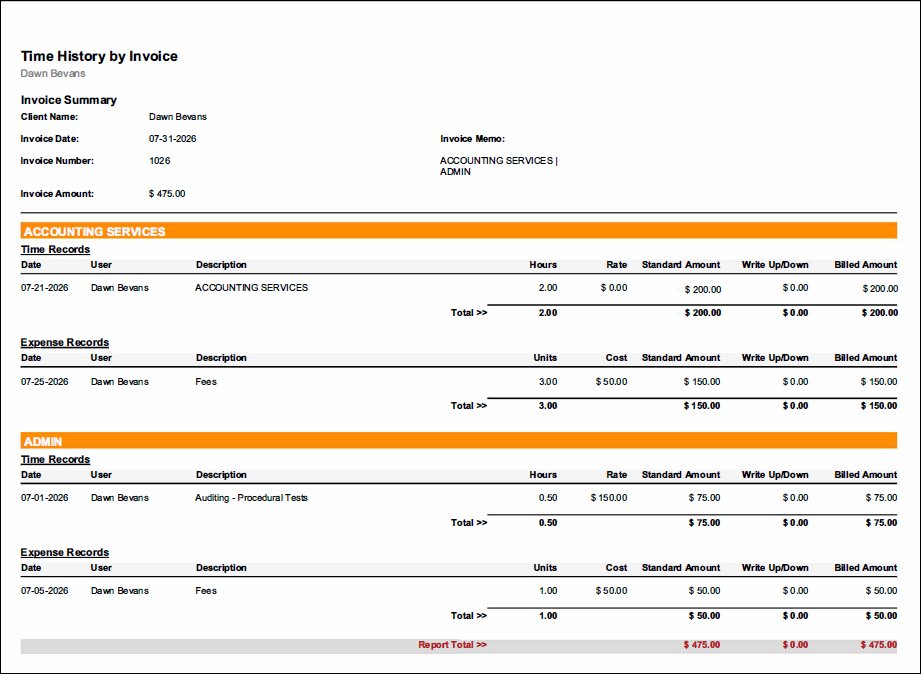
The Time History by Invoice Report provides a list of all time and expenses for the selected invoices.
- The Invoice Summary includes the Client Name, Invoice Date, Invoice Number, Invoice Amount, and Invoice Memo.
- Columns for Time Records include the Date, User, Description, Hours, Rate, Standard Amount, Write Up/Down, and Billed Amount.
- Columns for Expense Records include the Date, User, Description, Units, Cost, Standard Amount, Write Up/Down, ad Billed Amount.
Common Questions
- The Mango+ Reports tab is not available. Why?
- The Mango+ Reports feature has recently completed development and is now in the process of being rolled out to users. If you are unable to access this feature, please contact Mango Support and they can work to make this available for you.
- I can’t always see the Mango+ Reports tab. How can I access it?
- On some devices, the screen does not show enough space for the Mango+ Reports tab to be displayed. Try decreasing the Zoom setting in your browser to provide more space.
- Can we change the orientation of the Mango+ reports?
- No, Mango+ reports print in landscape in order for all columns to fit on the page.