
Open Time/Expense Aging Report
November 19, 2025
all plans
This article shows how to run the Open Time/Expense Aging Report, and includes examples of the report run in the detail and summary layout.
- Running the Open Time/Expense Aging Report
- Examples of the Open Time/Expense Aging Report
- Generating Classic Reports Using the Mango+ Open Time/Expense Aging Report
- Common Questions
- Learn more
Running the Open Time/Expense Aging Report
You can access the Open Time/Expense Aging Report from the Reports Center.
- Click the
 Reports menu.
 - On the Mango+ tab, click the Open Time/Expense Aging Report.
- Specify your desired options on the following tabs:
- Filter
- Sort
- Display Options
- Click Run Report. The report will be opened in a new window.
For additional information on using the Reports Center, see the Reports Overview article.
Filter
The Filter tab allows you to limit information shown on the report depending on one or more criteria. For example, you can limit transactions based on the date of the transaction, the client they are assigned to, and/or the staff assigned to the transaction. The following options are available:
- As of – Select a date you want to print aging as of.
- Clients – Select the client(s) you want to include on the report, or select All Clients.
- Include Inactive Clients – Select this check box if you want inactive clients to be included in the Clients drop-down and on the report. Clear this check box if you do not want inactive clients included in the Clients drop-down or on the report.
- Record Type – Select Time, Expenses, or All Records.
- Include Inactive Staff – Select this check box if you want to include inactive Originators and Billing Partners in the drop-down options and on the report. Clear the check box if you do not want to include inactive staff in the drop-down options or on the report.
- Billable Status – Select Billable, Non-Billable, or Both.
- Include Inactive Staff – Select this check box if you want to include inactive Originators and Billing Partners in the drop-down options and on the Report. Clear the check box if you do not want to include inactive staff in the drop-down options or on the report.
- Staff – Select the staff you want to be included on the report, or select All Staff.
- Originator – Select the originator(s) you want to include on the report, or select All Originators.
- Billing Partners – Select the billing partner(s) you want to include on the report, or select All Partners.
- Billing Groups – Select the billing group(s) you want to include on the report, or select All Billing Groups.
- Client Types – Select the client type(s) you want to include on the report, or select All Client Types.
- Engagement Type – Select the engagement(s) you want to include on the report, or select All Engagements.
- Activity – Select one or more activities you want to include on the report, or select All Activities.
- Client Groups – Select the client group(s) you want to include on the report, or select All Client Groups.
Sort
The Sort tab allows you to change the order and the grouping of information shown on the report depending on one or more criteria. For example, you can show detailed or summary information, sorted by date but grouped by client, with or without a total for the group. The following options are available:
- Sort by – Select the field used to sort the records on the report. (Note: Sort by is only available if the Layout is set to Detailed.)
- Sort Order – Select whether you want the report to be sorted in Ascending or Descending order. (Note: Sort Order is only available if the Layout is set to Detailed.)
- Group by – Select the field by which you want records grouped. Select None if you do not want to group records. (Note: You must select a group if the Layout is set to Summary.)
- Group Sort Order – Select whether you want the group to be sorted in Ascending or Descending order. (Note: Group Sort Order is only available if the Group by is set to a field other than None.)
- Sub-Group by – Select the field by which you want records grouped as a secondary grouping. Select None if you do not want to group records. (Note: Sub-Group by is only available if the Group by is set to a field other than None.)
- Sub-Group Sort Order – Select whether you want the secondary group to be sorted in Ascending or Descending order. (Note: Sub-Group Sort Order is only available if the Sub-Group by is set to a field other than None.)
- Sub-Sub-Group by – Select the field by which you want records grouped as a tertiary grouping. Select None if you do not want to group records. (Note: Sub-Sub-Group Order is only available if the Layout is set to Detailed and Sub-Group by is set to a field other than None.)
- Sub-Sub-Group Sort Order – Select whether you want the tertiary group to be sorted in Ascending or Descending order. (Note: Sub-Sub-Group Sort Order is only available if the Sub-Sub-Group by is set to a field other than None.)
Display Options
The Display Options tab shows additional options for the report. For example, you may be able to include or exclude a total for all records on the report. The options available depend on the selected report.
- Layout – Select if you want a Detailed report, or a Summary report.
- The Detailed report includes the cash receipts information. Columns include the Client, Engagement, Date, User, Activity, Work Description, Flat fee Amount, Time NB, 0-30, 31-60, 61-90, Over 90, Total Time Value, and Actual Billable Value.
- The Summary report displays the total cash receipts by Group. Columns include the Group, Sub-Group, Flat Fee Amount, Time, 0-30, 31-60, 61-90, Over 90, Total Time Value, and Actual Billable Value.
- Display Report Total – Select this check box if you want to display a total at the bottom of the report.
- Display Group Total – Select this check box if you want to display a total for each group. (Note: Display Group Total is only available if the Group by is set to a field other than None.)
- Display Sub-Group Total – Select this check box if you want to display a total for each sub-group. (Note: Display Sub-Group Total is only available if the Sub-Group by is set to a field other than None.)
- Display Sub-Sub-Group Total – Select this check box if you want to display a total for each sub-sub-group. (Note: Display Sub-Sub-Group Total is only available if the Layout is set to Detail and the Sub-Sub-Group by is set to a field other than None.)
Examples of the Open Time/Expense Aging Report
This report can be run using a Detailed or Summary layout.
Detailed Report
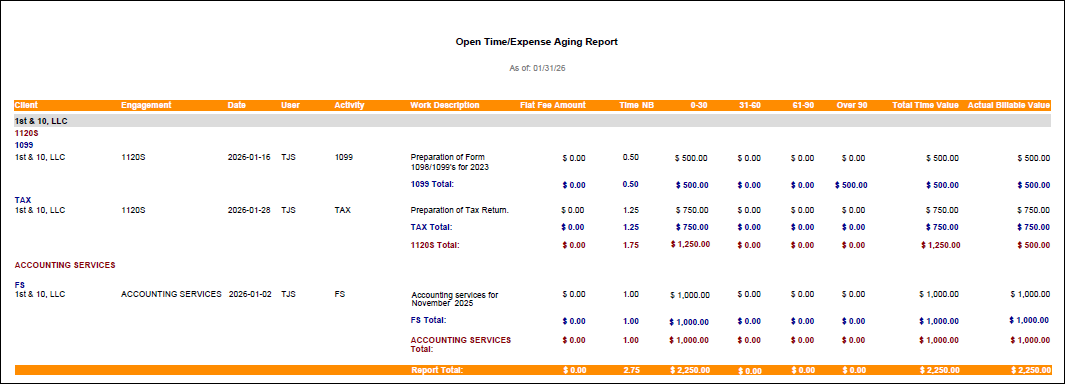
The Detail Open Time/Expense Aging Report provides a list of all unbilled time and expenses for the selected criteria. Columns include the Client, Engagement, Date, User, Activity, Work Description, Flat Fee Amount, Time NB, 0-30, 31-60, 61-90, Over 90, Total Time Value, and Actual Billable Value.
Summary Report
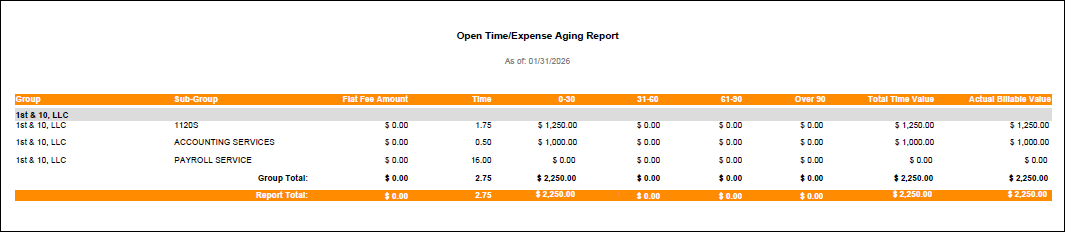
The Summary Open Time/Expense Aging Report includes a summarized list of unbilled time and expenses for the selected criteria. Columns include the Group, Sub-Group, Flat Fee Amount, Time, 0-30, 31-60, 61-90, Over 90, Total Time Value, and Actual Billable Value.
Generating Classic Reports Using the Mango+ Open Time/Expense Aging Report
- We have been using the classic Open Time Aging Detail Report, and need to continue to see comparable values. Can I run the Mango+ Open Time/Expense Aging Report to produce the same values as the classic report?
- You can use the following steps to generate a Mango+ Open Time/Expense Aging Report that matches the Open Time Aging Detail Report.
- On the Filter tab:
- Select the desired date range.
- Set other filters as desired.
- On the Sort tab:
- Leave Sort by as Date.
- Leave Sort Order as Ascending.
- Leave Group by as Client.
- Leave Group Sort Order as Ascending.
- Leave Sub-Group by as Engagement.
- Leave Sub-Group-Sort Order as Ascending.
- Set Sub-Sub Group by to None.
- On the Display Options tab:
- Leave Layout as Detailed.
- Leave Display Report Total selected.
- Leave Display Group Total selected.
- Leave Display Sub-Group Total selected.
- On the Filter tab:
- We have been using the classic Open Time Aging Detail by Billable/Non-Billable Report, and need to continue to see comparable values. Can I run the Mango+ Open Time/Expense Aging Report to produce the same values as the classic report?
- You can use the following steps to generate a Mango+ Open Time/Expense Aging Report that matches the Open Time Aging Detail by Billable/Non-Billable Report.
- On the Filter tab:
- Select the desired date range.
- Set other filters as desired.
- On the Sort tab:
- Leave Sort by as Date.
- Leave Sort Order as Ascending.
- Leave Group by as Client.
- Leave Group Sort Order as Ascending.
- Set Sub-Group by to Non-Billable.
- Leave Sub-Group-Sort Order as Ascending.
- Set Sub-Sub Group by to None.
- On the Display Options tab:
- Leave Layout as Detailed.
- Leave Display Report Total selected.
- Leave Display Group Total selected.
- Leave Display Sub-Group Total selected.
- On the Filter tab:
- We have been using the classic Open Time Aging Detail – Grouped by Engagement and Activity Report, and need to continue to see comparable values. Can I run the Mango+ Open Time/Expense Aging Report to produce the same values as the classic report?
- You can use the following steps to generate a Mango+ Open Time/Expense Aging Report that matches the Open Time Aging Detail – Grouped by Engagement and Activity Report.
- On the Filter tab:
- Select the desired date range.
- Set other filters as desired.
- On the Sort tab:
- Leave Sort by as Date.
- Leave Sort Order as Ascending.
- Leave Group by as Client.
- Leave Group Sort Order as Ascending.
- Leave Sub-Group by as Engagement.
- Leave Sub-Group Sort Order as Ascending.
- Leave Sub-Sub-Group by as Activity.
- Leave Sub-Sub-Group Order as Ascending.
- On the Display Options tab:
- Leave Layout as Detailed.
- Leave Display Report Total selected.
- Leave Display Group Total selected.
- Leave Display Sub-Group Total selected.
- Leave Display Sub-Sub-Group Total selected.
- On the Filter tab:
- We have been using the classic Open Time Aging Summary Report, and need to continue to see comparable values. Can I run the Mango+ Open Time/Expense Aging Report to produce the same values as the classic report?
- You can use the following steps to generate a Mango+ Open Time/Expense Aging Report that matches the Open Time Aging Summary Report.
- On the Filter tab:
- Select the desired date range.
- Set other filters as desired.
- On the Sort tab:
- Leave Sort by as Date.
- Leave Sort Order as Ascending.
- Leave Group by as Client.
- Leave Group Sort Order as Ascending.
- Set Sub-Group by to None.
- Set Sub-Sub Group by to None.
- On the Display Options tab:
- Set Layout to Summary.
- Leave Display Report Total selected.
- Leave Display Group Total selected.
- On the Filter tab:
- We have been using the classic Open Time Aging Summary by User Report, and need to continue to see comparable values. Can I run the Mango+ Open Time/Expense Aging Report to produce the same values as the classic report?
- You can use the following steps to generate a Mango+ Open Time/Expense Aging Report that matches the Open Time Aging Summary by User Report.
- On the Filter tab:
- Select the desired date range.
- Set other filters as desired.
- On the Sort tab:
- Leave Sort by as Date.
- Leave Sort Order as Ascending.
- Set Group by to User.
- Leave Group Sort Order as Ascending.
- Leave Sub-Group by as Engagement.
- Leave Sub-Group Sort Order as Ascending.
- Set Sub-Sub-Group by to Engagement.
- Leave Sub-Sub-Group Order as Ascending.
- On the Display Options tab:
- Set Layout to Summary.
- Leave Display Report Total selected.
- Leave Display Group Total selected.
- Leave Display Sub-Group Total selected.
- Leave Display Sub-Sub-Group Total selected.
- On the Filter tab:
- We have been using the classic Open Time Aging Summary – Grouped by Engagement/Activity Report, and need to continue to see comparable values. Can I run the Mango+ Open Time/Expense Aging Report to produce the same values as the classic report?
- You can use the following steps to generate a Mango+ Open Time/Expense Aging Report that matches the Open Time Aging Summary – Grouped by Engagement/Activity Report.
- On the Filter tab:
- Select the desired date range.
- Set other filters as desired.
- On the Sort tab:
- Leave Sort by as Date.
- Leave Sort Order as Ascending.
- Leave Group by as Client.
- Leave Group Sort Order as Ascending.
- Leave Sub-Group by as Engagement.
- Leave Sub-Group Sort Order as Ascending.
- Leave Sub-Sub-Group by as Activity.
- Leave Sub-Sub-Group Order as Ascending.
- On the Display Options tab:
- Set Layout to Summary.
- Leave Display Report Total selected.
- Leave Display Group Total selected.
- Leave Display Sub-Group Total selected.
- Leave Display Sub-Sub-Group Total selected.
- On the Filter tab:
Common Questions
- The Mango+ Reports tab is not available. Why?
- The Mango+ Reports feature has recently completed development and is now in the process of being rolled out to users. If you are unable to access this feature, please contact Mango Support and they can work to make this available for you.
- I can’t always see the Mango+ Reports tab. How can I access it?
- On some devices, the screen does not show enough space for the Mango+ Reports tab to be displayed. Try decreasing the Zoom setting in your browser to provide more space.
- Can we change the orientation of the Mango+ reports?
- No, Mango+ reports print in landscape in order for all columns to fit on the page.